
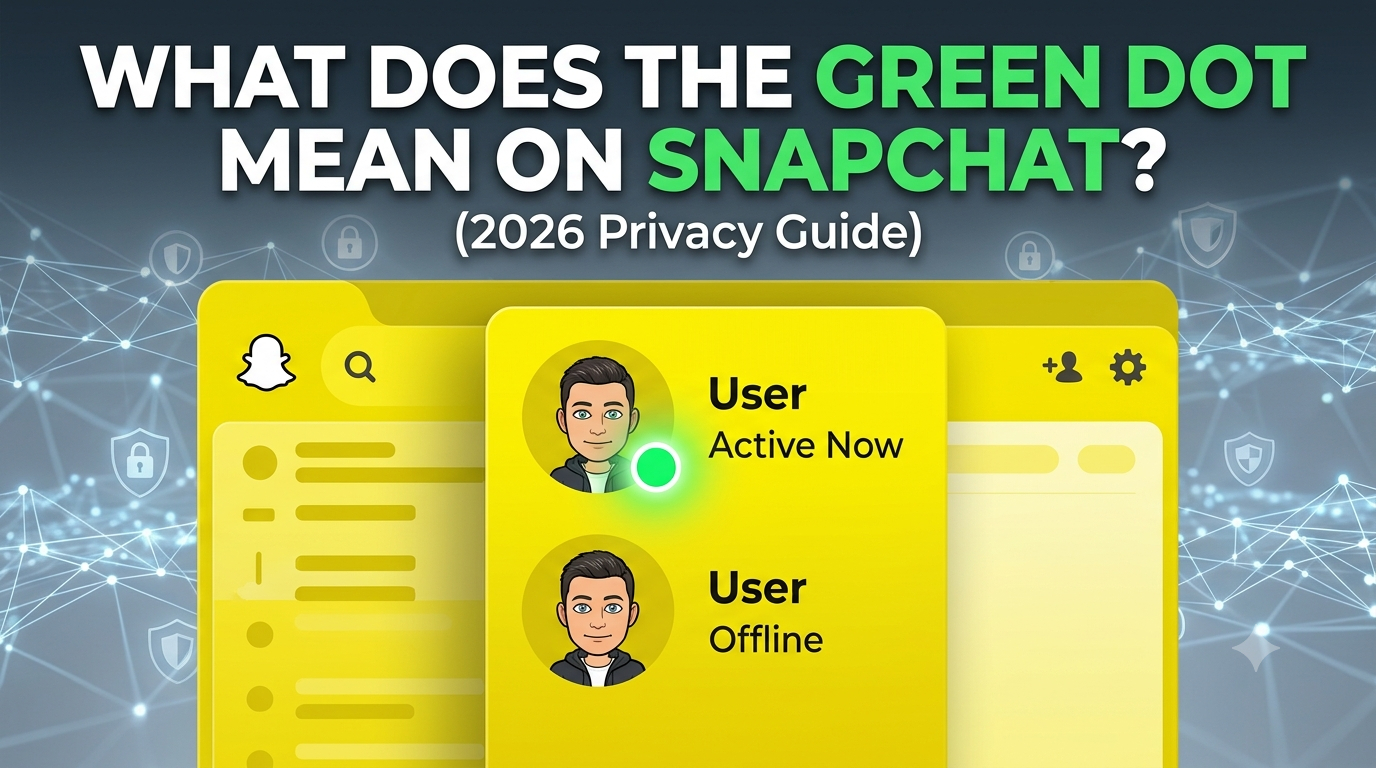
If you have been scrolling through your chat feed or looking at friendship profiles lately, you might have noticed a tiny green circle next to someone’s Bitmoji. Naturally, you are wondering: what does the green dot mean on Snapchat? Simply put, the green dot is Snapchat’s Activity Indicator. It acts as an online status symbol, letting you know that a friend has been active on the app recently.
However, unlike older social platforms, Snapchat handles online status with a unique twist. Seeing that dot doesn’t necessarily mean your friend is staring at your specific chat window right this second.
Let’s dive into exactly how this feature works, where it appears, and how you can control your own digital footprint.
What Does the Green Dot Mean on Snapchat?
The green dot on Snapchat means a user has been active on the platform within the last few hours. It is designed to encourage real-time conversations and let you know who is available to snap or chat.
There are a few critical rules to keep in mind regarding how this feature behaves:
-
Mutual Friends Only: You will only see the green dot if you have added the person as a friend and they have added you back.
-
It Doesn’t Track Actions: The indicator does not tell you what the person is doing. They could be viewing public stories, adjusting their settings, or exploring the Snap Map.
-
It Is Not Always Instant: The green dot is a “recent activity” tracker, meaning it might linger for a short period even after the user closes the app.
Where Does the Snapchat Green Dot Appear?
Snapchat places this activity status indicator in a few distinct areas across the app interface to help improve user engagement.
1. The Chat List (Friends Feed)
The most common place to spot the green dot is right next to your friend’s Bitmoji or profile picture in your Chat tab. If you see it there, it is a strong hint that sending a message might yield an instant reply.
2. Friendship Profiles
When you tap on a friend’s Bitmoji to open their full Friendship Profile, the green dot will appear directly on or next to their main avatar at the top of the screen.
3. Search and Quick Add
Occasionally, if a mutual friend appears in your search results or interface lists, the activity indicator may show up to signal their recent availability.
How Long Does the Green Dot Stay Active on Snapchat?
A common pain point for users is messaging a friend with a green dot, only to wait hours for a reply. Why does this happen?
The green dot usually stays visible while the user is actively using the app and can linger for 3 to 5 minutes after they completely close it. However, Snapchat’s background refreshing can sometimes stretch this window.
Important Distinction: If a user remains logged in but idle, or if the app refreshes in the background, the green dot may eventually transition into a time-stamped text label (like “Active 30m ago” or “Active 2h ago”) inside their Friendship Profile, rather than remaining a solid green dot. The exact dot itself disappears fully if there has been no app activity for more than 24 hours.
How to Turn Off the Activity Indicator on Snapchat (Step-by-Step)
While the activity indicator is great for getting fast replies, it can feel like an invasion of privacy. If you want to browse your feeds without the pressure of immediate replies, you can turn this feature off.
Disabling the green dot is simple. Follow these updated steps for iOS and Android:
-
Open Snapchat and tap your Bitmoji/Profile icon in the top-left corner.
-
Tap the Gear icon (Settings) in the top-right corner.
-
Scroll down to the Privacy Controls section (on some devices, look under App & Privacy -> My Privacy & Data).
-
Tap on Activity Indicator.
-
Toggle the switch off next to “Let friends see when you’re active.”
[Profile] -> [Settings ⚙️] -> [Privacy Controls] -> [Activity Indicator] -> [Toggle Off]
Note: Just like read receipts in other apps, turning off your activity indicator means you will no longer be able to see your friends’ green dot status either.
Green Dot vs. Ghost Mode: What’s the Difference?
Many users confuse hiding their online status with hiding their location. These are two completely separate privacy controls on Snapchat.
| Feature | What It Hides | Where It Applies |
| Activity Indicator (Off) | Hides the green dot and recent activity timestamps. | Chat list and Friendship Profiles. |
| Ghost Mode (On) | Hides your live GPS location entirely. | The Snap Map. |
If you want absolute privacy, you should toggle off your Activity Indicator and toggle on Ghost Mode.
Frequently Asked Questions
Does the green dot mean they are talking to someone else?
No. The green dot only means the Snapchat app is open on their device. It provides zero information about who they are messaging, what stories they are watching, or if they are looking at their own profile.
Why can’t I see the green dot for some friends?
If the green dot isn’t showing up for someone you know who is online, it means one of three things: they have turned off their Activity Indicator in their privacy settings, they haven’t opened the app recently, or they have removed you as a mutual friend.
Does the green dot mean they are reading my message?
Not necessarily. They might have the app open but be looking at a completely different conversation thread or browsing the Spotlight tab. The only definitive proof that someone read your message is the hollow “Opened” arrow icon next to the chat.
Is the Snapchat green dot accurate?
It is mostly accurate, but shouldn’t be treated as a foolproof real-time tracking tool. Background processes, weak internet connections, and app glitches can cause the green dot to linger for a few minutes after a user locks their phone.
Summary
The green dot on Snapchat is a straightforward feature built to make the platform feel alive and interactive. It tells you when a mutual friend has recently used the app, helping you time your messages perfectly. However, if you value a low-profile digital presence, you can easily reclaim your privacy by turning off the Activity Indicator in your settings menu.
To see a visual walkthrough of how to access these settings and manage your online presence, you can watch this Snapchat Activity Indicator Tutorial. This helpful video guide walks you step-by-step through navigating the menu layouts to toggle your status off smoothly.
