
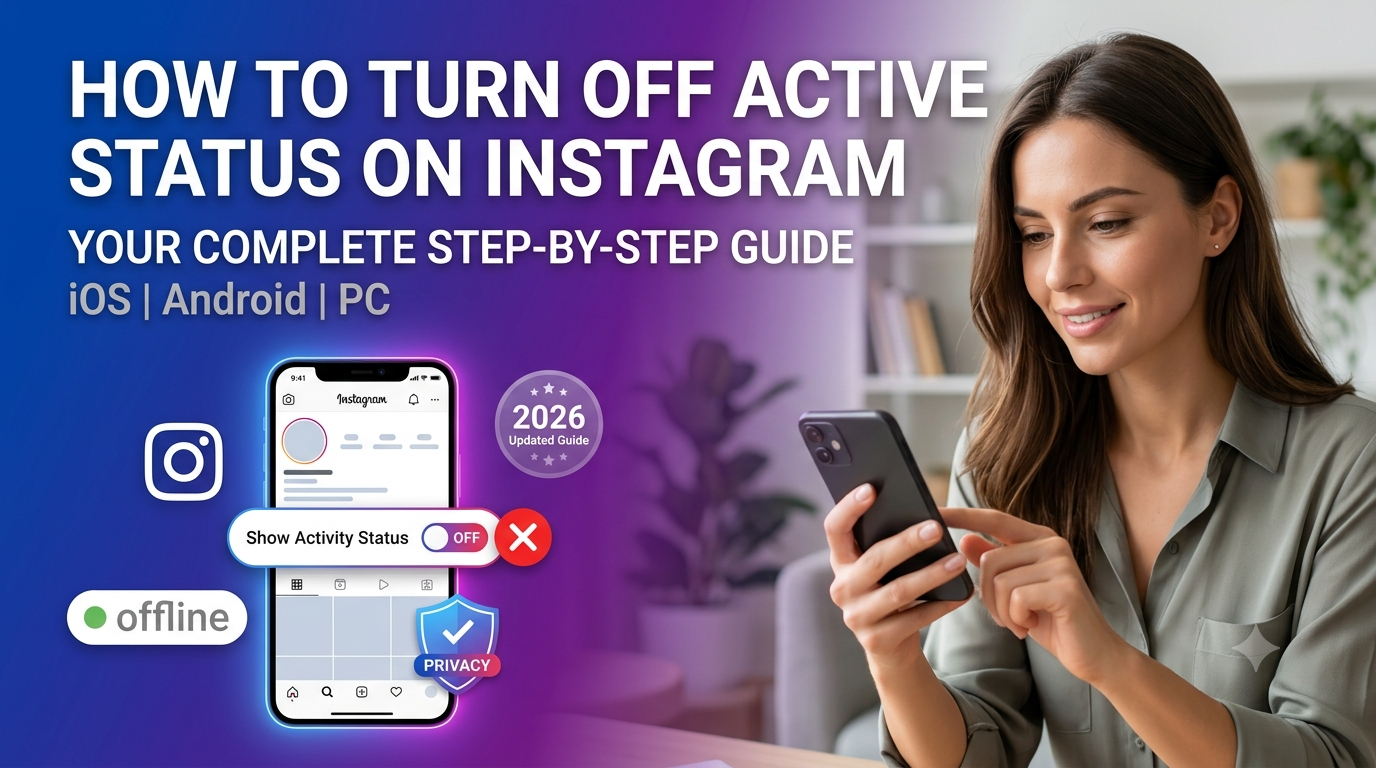
Have you ever opened Instagram just to quickly check a reel or reply to a specific message, only to get bombarded by texts from friends who saw you online? We have all been there. Instagram’s default settings are built to keep people connected, but sometimes you just want to scroll through your feed in peace without announcing your presence to the world.
Fortunately, hiding your online activity is incredibly simple. If you want to know how to turn off active status on Instagram, this guide will walk you through the entire process. Whether you are using an iPhone, an Android device, or a desktop computer, we have got you covered with updated steps for 2026.
By disabling this feature, you can reclaim your digital privacy and browse on your own terms. Let’s dive straight into how it works and what happens when you flip the switch.
Why You Might Want to Hide Your Instagram Active Status
Social media boundaries are essential for mental clarity. There are plenty of valid reasons to disable your activity status on Instagram. For some, it is about avoiding immediate pressure to reply to direct messages (DMs). For others, it is simply about keeping their social habits private from coworkers, acquaintances, or over-eager friends.
Before we look at the steps, it is important to understand how the green dot system functions. By default, Instagram shows your followers (the ones you follow back) and anyone you message exactly when you were last active or if you are currently online.
The Direct Messaging Dilemma
When your activity status is turned on, people see a small green dot next to your profile picture in their DM inbox. They might also see text like “Active 5m ago” or “Active now.” If you value your peace of mind, turning this off ensures no one can track your app usage patterns.
The Catch: The Two-Way Street Rule
Before you toggle that switch, there is one major catch you need to know. Instagram operates on a strict policy of reciprocity:
Important Note: If you turn off your active status on Instagram, you will no longer be able to see the active status of other users. You won’t know when your friends, family, or favorite creators are online either.
How to Turn Off Active Status on Instagram (Mobile App)
Because the Meta interface updates frequently, old tutorials from a few years ago might show navigation paths that no longer exist. Below are the most accurate, updated steps to change your privacy settings on both iOS and Android platforms using the official Instagram app.
Step-by-Step for iPhone and Android Users
-
Open the Instagram App: Tap the Instagram icon on your phone and ensure you are logged into the specific account you want to modify.
-
Go to Your Profile: Tap your profile picture or the avatar icon located in the bottom right corner of your screen.
-
Open the Menu: Tap the three horizontal lines (the hamburger menu) in the top right corner to open your account settings.
-
Navigate to Messages and Story Replies: Scroll down the menu until you find the section labeled How others can interact with you. Tap on Messages and story replies.
-
Select Activity Status: Under the Who can see that you’re online subheader, tap on Show activity status.
-
Toggle the Switch Off: You will see a toggle switch next to Show Activity Status. Tap it to turn it off (it will turn grey instead of blue).
[Profile] ➔ [Three Lines Menu] ➔ [Messages and Story Replies] ➔ [Show Activity Status] ➔ [Toggle Off]
Managing Multiple Accounts
If you manage multiple Instagram accounts on the same phone (such as a personal account and a business profile), remember that this setting is not global. You will need to switch profiles and repeat these exact steps for each account if you want to remain hidden across all of them.
How to Turn Off Active Status on Instagram on PC or Mac
Many people prefer using Instagram on a desktop computer or laptop while working. If you use a web browser like Google Chrome, Safari, or Microsoft Edge to check your feed, the layout looks slightly different than the mobile app interface. Here is how to disable your active status on the desktop version.
Steps for Desktop Browsers
-
Go to Instagram.com: Open your preferred browser, navigate to the website, and log in to your profile.
-
Access Settings: Look at the left-hand sidebar menu. Click on the More option (represented by three horizontal lines at the bottom left) and then click on Settings (the gear icon).
-
Find Privacy and Security: In the settings menu navigation on the left, click on How others can interact with you or look directly for Messages and story replies.
-
Adjust Activity Status: Locate the toggle button for Show Activity Status and click it to turn it off.
By updating this on your computer, the change syncs immediately across cloud servers, meaning your status will also be hidden on your mobile app.
What Happens After You Turn Off Your Activity Status?
Once you flip that toggle switch to off, your Instagram experience will change slightly. Here is exactly what to expect so there are no surprises:
-
The Green Dot Disappears: The bright green online dot next to your profile picture will vanish completely from your friends’ direct message feeds.
-
No “Active Now” Text: No one will be able to see text markers indicating you are currently scrolling or when you last closed the app.
-
“Active in the Same Chat” is hidden: Instagram has a secondary feature that shows when you and another user are actively looking at the same DM thread at the same time. Turning off your main activity status disables this shared chat feature too.
-
Read Receipts Stay Active: It is vital to note that turning off active status does not turn off read receipts. If you open a direct message, the sender will still see the word “Seen” under their message. To fix this, you must change your read receipts settings separately.
Troubleshooting: Why is My Active Status Still Showing?
Sometimes, users report that even after changing their settings, friends claim they can still see them online. If you run into this bug, don’t panic. Here are a few troubleshooting steps to resolve the issue:
1. Force Close and Restart the App
Apps can hold onto cached memory data. Completely close the Instagram app from your phone’s recent apps switcher, wait a few seconds, and reopen it. This forces the app to pull fresh privacy settings from Meta’s servers.
2. Check for App Updates
Running an outdated version of Instagram can cause privacy toggles to glitch out. Head to the Apple App Store or Google Play Store, search for Instagram, and hit the update button if one is available.
3. Log Out and Log Back In
If the problem persists, go back to your account settings, scroll to the very bottom, and tap log out. Once logged back out, input your credentials to log back in. This completely refreshes your profile configuration.
Frequently Asked Questions
Can someone tell if I turn off my active status on Instagram?
No, Instagram does not send a notification or alert to anyone when you change your privacy settings. The only way someone might guess you turned it off is if they notice your green dot has permanently disappeared, and they can no longer see your “Last Active” time stamp.
Does turning off active status also turn it off on Facebook?
No. Even though Facebook and Instagram are both owned by Meta and can be linked via the Accounts Center, their active status settings operate independently. If you want to go completely dark, you must manually turn off active status within the Facebook Messenger app as well.
Can you hide your active status from just one person?
As of 2026, Instagram does not offer a feature to hide your active status from a single, specific person while keeping it visible to everyone else. It is an all-or-nothing setting. However, if you want to hide your activity from one specific user, you can choose to restrict their account or block them. Restricting an account stops them from seeing when you are online and sends their messages to your Message Requests folder.
Does active status mean you are looking at their messages?
No, “Active Now” simply means you have the Instagram app open on your device and are connected to the internet. You could be watching a reel, editing a photo, or reading a comment section on a public post. It does not mean you are actively looking at your inbox or avoiding a specific message.
Conclusion
Learning how to turn off active status on Instagram is one of the easiest ways to enjoy a more relaxed, pressure-free social media experience. Whether you want to browse without answering texts or simply prefer keeping your habits to yourself, taking advantage of these built-in privacy tools puts the control back in your hands.
Just remember the golden rule of Meta privacy: if you decide to hide your own digital footprint, you won’t be able to track anyone else’s either. It is a small price to pay for complete peace of mind while you scroll.
What other privacy features do you think Instagram should add? Let us know in the comments below, and don’t forget to share this guide with a friend who needs a little break from the online grid!
