
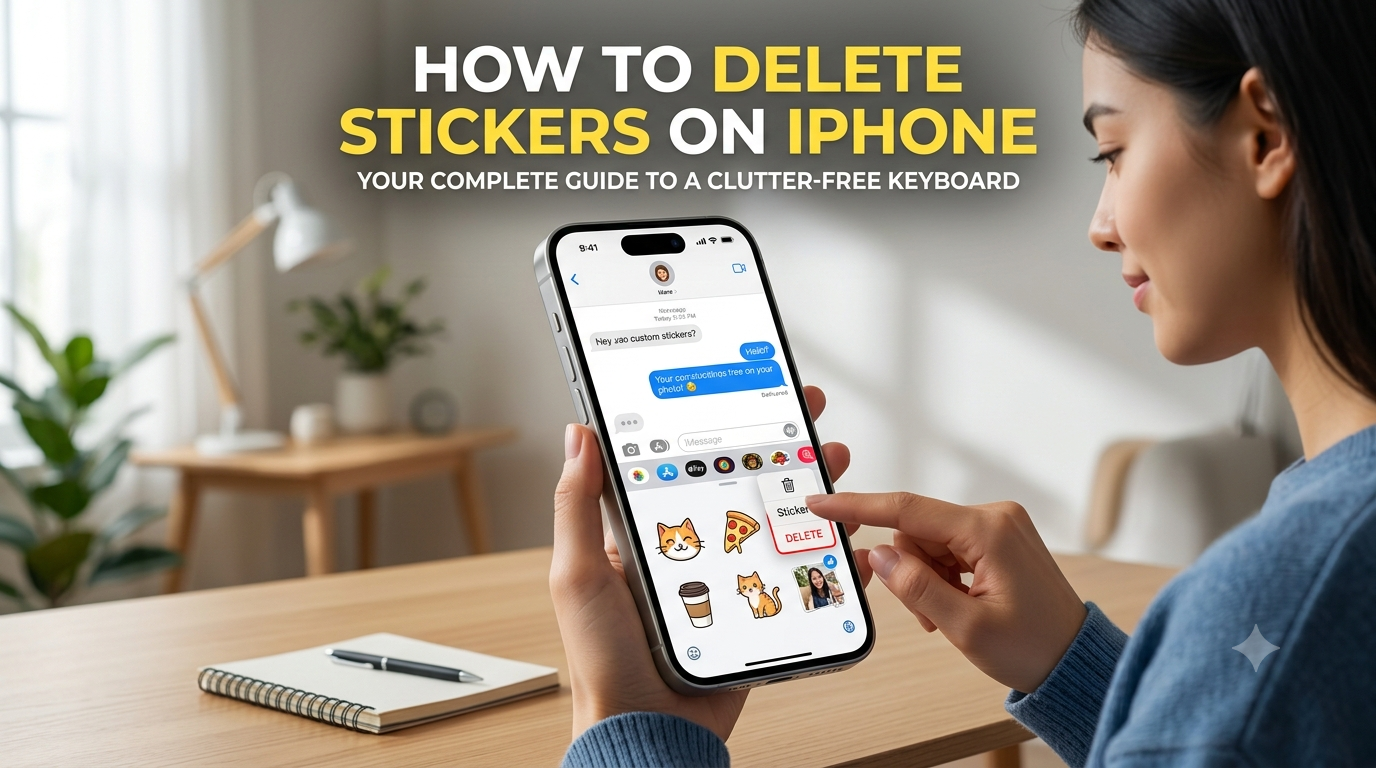
Whether you accidentally turned an embarrassing photo into an iOS cutout or your keyboard is cluttered with Memojis you never use, digital clutter is real. Apple makes it incredibly easy to create custom stickers, but finding the delete button isn’t quite as intuitive.
If you are trying to figure out how to delete stickers on iPhone, you are in the right place. Keeping your Messages app clean improves your user experience and stops you from sending the wrong graphic by mistake. This comprehensive guide will walk you through removing custom stickers, deleting Memojis, and managing third-party sticker packs in iOS 17, iOS 18, and beyond.
Why Is Your iPhone Keyboard Cluttered with Stickers?
Apple’s Messages app has evolved into a highly customizable hub. With recent iOS updates, the tech giant introduced advanced sticker features, allowing users to “lift” subjects from photos and instantly convert them into animated graphics.
While this is great for personalization, it quickly leads to an overcrowded sticker menu. You might have searched for this because:
-
You created accidental stickers while editing live photos.
-
Your custom sticker drawer is overflowing, making it hard to find your favorites.
-
Third-party apps automatically add sticker packs you don’t want.
-
You want to disable the default Memoji stickers from invading your emoji keyboard.
Whatever your reason, clearing out the clutter takes less than two minutes when you know where to look.
How to Delete Stickers on iPhone (Custom Stickers)
If you used the “Lift Subject” feature to turn your friends, pets, or memes into custom stickers, they live inside your iOS sticker drawer. Here is exactly how to remove them permanently.
Step-by-Step Custom Sticker Removal
-
Open the Messages app on your iPhone and tap on any conversation.
-
Tap the “+” (Plus) icon to the left of the text input field.
-
Select Stickers from the pop-up menu. This opens your recent and custom sticker drawer.
-
Tap the Stickers icon (it looks like a peeled-back smiley face sticker) to view your custom creations.
-
Long-press (press and hold) the specific sticker you want to get rid of.
-
A context menu will pop up. Tap Delete.
Pro Tip: If you want to rearrange your stickers instead of deleting them, you can choose Rearrange from that same pop-up menu and drag them into a better order.
How to Delete Live Stickers and Photo Cutouts
Live Stickers add a dynamic touch to your chats by animating moving elements from Live Photos. However, they take up more processing power and space in your tray.
Removing Live Photo Cutouts
To remove animated or static photo cutouts, follow the same steps as custom stickers. Open your conversation, hit the + button, go to Stickers, long-press the animated cutout, and hit Delete.
If the sticker drawer feels too small to navigate, you can expand it by dragging the top bar of the sticker window upward. This gives you a full-screen view of your collection, making it much easier to mass-delete unwanted graphics.
Managing Third-Party Sticker Packs and iMessage Apps
Sometimes, the clutter doesn’t come from your own photos. When you download applications from the App Store (like Snapchat, TikTok, or dedicated sticker apps), they often automatically install companion sticker packs into your iMessage drawer.
How to Remove or Hide Third-Party Sticker Packs
If third-party packs are cluttering your interface, you can disable or completely uninstall them through your iMessage settings.
-
Open Messages and open any chat thread.
-
Tap the + (Plus) icon.
-
Scroll down the menu and tap More.
-
To permanently remove an app’s stickers, you must delete the parent app from your iPhone’s home screen.
-
To simply hide them from your sight, go to Settings > Apps > Messages > iMessage Apps on your iPhone. Toggle off any third-party apps you don’t want appearing in your drawer.
How to Remove Memoji Stickers from the Emoji Keyboard
One of the biggest complaints among iPhone users is the default placement of Memoji stickers. By default, Apple places your recently used Memojis on the far-left side of your standard emoji keyboard, leading to accidental taps.
Standard View: [ Memoji Stickers ] | [ Frequently Used Emojis ]
Cleaned View:  [ Frequently Used Emojis ] [ Standard Emojis... ]
If you want to completely remove Memojis from your keyboard view, follow these steps:
Turning Off Memoji Stickers in Settings
-
Open the Settings app on your iPhone.
-
Scroll down and tap on General.
-
Select Keyboard.
-
Scroll all the way to the bottom of the Keyboard settings menu.
-
Under the Emoji section, toggle OFF the switch next to Memoji Stickers.
Once turned off, your emoji keyboard will return to its classic look, completely free of Memoji clutter.
Common Troubleshooting: What to Do If Stickers Won’t Delete
Occasionally, a software glitch might cause deleted stickers to reappear, or the context menu might fail to pop up when you long-press. If you run into these issues, try these verified fixes:
1. Force Quit the Messages App
Swipe up from the bottom of your screen to open the App Switcher, find the Messages app, and swipe up on it to close it completely. Relaunch the app and try deleting the sticker again.
2. Restart Your iPhone
A simple system reboot clears out temporary cache issues that might be preventing your sticker drawer from updating.
3. Check Your iOS Version
Ensure your iPhone is updated to the latest software version. Navigate to Settings > General > Software Update to check for outstanding patches. Apple frequently rolls out stability updates that fix minor keyboard and messaging bugs.
Frequently Asked Questions
Can I recover a sticker after deleting it?
No. Once you delete a custom sticker from your drawer, it is permanently gone. If you want it back, you will need to find the original photo in your Photos app and recreate it.
Does deleting a sticker remove it from messages I already sent?
No. Deleting a sticker from your keyboard only removes it from your personal collection. Any stickers you have already sent in chat threads will remain visible to both you and the recipient.
How do I delete stickers that someone else sent me?
You cannot delete a sticker from someone else’s keyboard, but you can remove a sticker that someone “stuck” onto a text message in your thread. Long-press the message containing the sticker, tap Sticker Details, and swipe left on the sticker name to delete it from the view.
Why don’t I see the “Delete” option when I hold down a sticker?
This usually happens if you aren’t pressing firmly enough, or if your phone is experiencing a minor lag. Make sure you press and hold without moving your finger. If it still fails, restart your iPhone.
Conclusion
Managing your digital space makes texting faster, cleaner, and much more enjoyable. Learning how to delete stickers on iPhone is a quick fix that saves you from accidental clicks and unwanted clutter. Whether you are removing custom photo cutouts, hiding third-party apps, or turning off Memojis entirely, these built-in iOS tools give you complete control over your keyboard layout.
Take a few moments to purge your unwanted stickers today and curate a collection you’ll actually use!
