
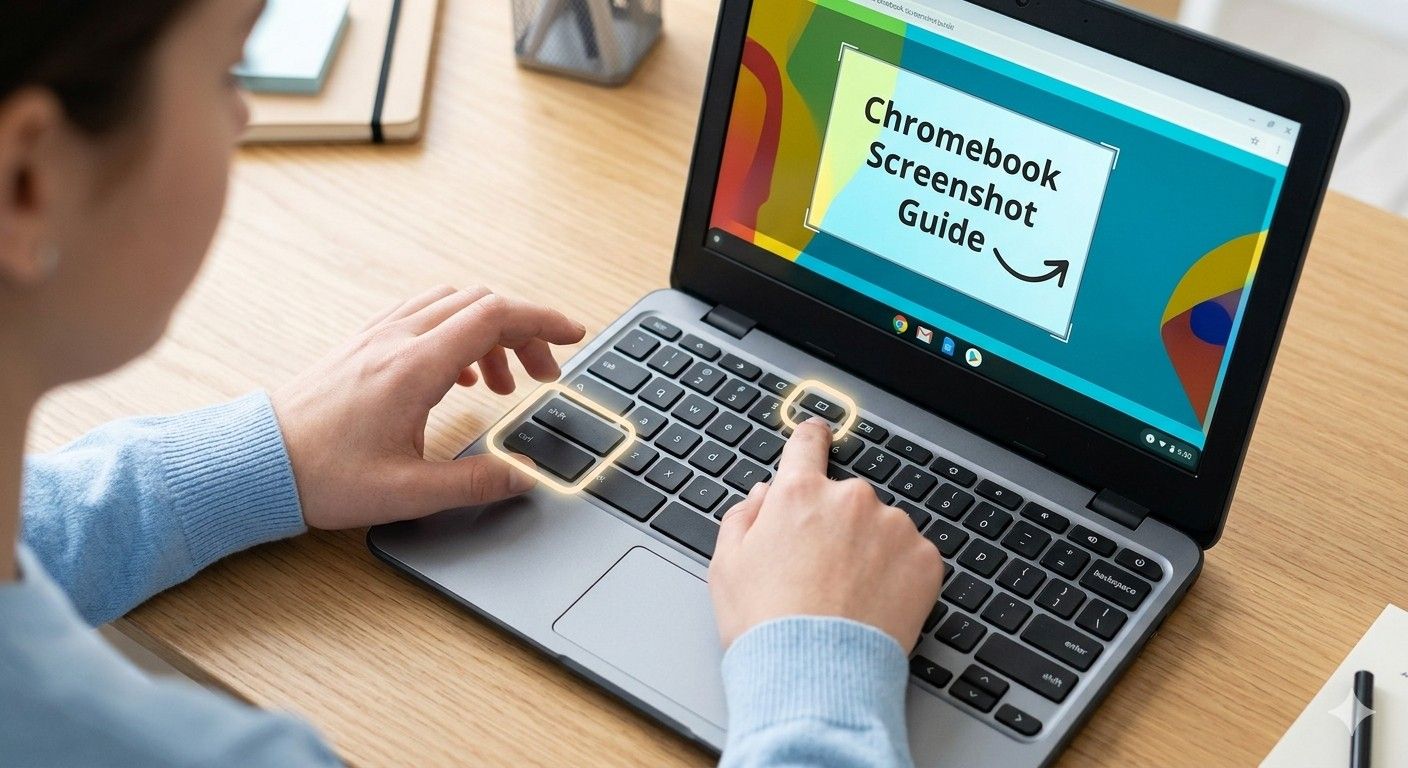
Taking screenshots is one of the most useful skills for Chromebook users. Whether you’re saving important information, sharing an error message, creating tutorials, or capturing online content, knowing how to screenshot on a Chromebook can save time and improve productivity.
The good news is that ChromeOS includes several built-in screenshot tools. You can capture the entire screen, a specific area, a window, or even record your screen without installing extra software.
This guide explains every method available in 2026, including keyboard shortcuts, touchscreen options, editing tools, troubleshooting tips, and answers to common questions.
Why Learn How to Screenshot on Chromebook?
Screenshots are useful for many everyday tasks:
- Saving receipts and confirmations
- Capturing online research
- Reporting technical issues
- Creating presentations
- Sharing information with friends or coworkers
- Recording online lessons and tutorials
Since Chromebooks are widely used in schools, businesses, and homes, understanding the screenshot features built into ChromeOS is essential.
How to Screenshot on Chromebook Using Keyboard Shortcuts
The fastest way to take a screenshot is with keyboard shortcuts.
Capture the Entire Screen
Press:
Ctrl + Show Windows
The Show Windows key looks like a rectangle with two vertical lines beside it.
Your Chromebook immediately captures the entire screen and saves the image automatically.
Capture Part of the Screen
Press:
Ctrl + Shift + Show Windows
Your screen will dim slightly.
Then:
- Click and drag to select the area.
- Release the mouse button.
- The screenshot is saved automatically.
This method is perfect when you only need a specific section of a webpage, document, or application.
Capture a Specific Window
Press:
Ctrl + Alt + Show Windows
Then:
- Click the window you want to capture.
- ChromeOS saves the screenshot instantly.
This keeps your image clean by excluding the taskbar and background applications.
How to Screenshot on Chromebook Without a Keyboard
Many modern Chromebooks include touchscreen functionality.
Using Quick Settings
- Click the time in the bottom-right corner.
- Open the Quick Settings panel.
- Select Screen Capture.
- Choose:
- Full Screen
- Partial Screen
- Window Screenshot
- Capture your image.
This method is especially useful for tablet-style Chromebooks.
Using the ChromeOS Screen Capture Tool
Google significantly improved ChromeOS screenshot tools in recent updates.
Open the Screen Capture Toolbar
Press:
Shift + Ctrl + Show Windows
A capture toolbar appears at the bottom of the screen.
You can choose:
- Full-screen screenshot
- Partial screenshot
- Window screenshot
- Screen recording
The toolbar makes taking screenshots easier because all options are visible in one place.
Benefits of the Screen Capture Tool
- Easy access
- Supports screenshots and video recordings
- User-friendly interface
- Works on all modern ChromeOS devices
How to Screenshot on Chromebook Tablet Mode
If your Chromebook functions as a tablet, use the physical buttons.
Button Combination Method
Press simultaneously:
Power + Volume Down
Hold both buttons briefly.
The screenshot will be captured and saved automatically.
This method works similarly to taking screenshots on Android devices.
Where Do Chromebook Screenshots Go?
After learning how to screenshot on a Chromebook, many users ask where the files are stored.
By default, screenshots are saved in the:
Downloads Folder
To locate them:
- Open the Files app.
- Select Downloads.
- Look for files named:
- Screenshot 2026-05-30…
- Screenshot 2026-06-01…
ChromeOS automatically timestamps screenshots for easy organization.
How to Copy a Screenshot Directly to the Clipboard
Sometimes you don’t need a saved image file.
You can copy screenshots directly to your clipboard.
Clipboard Screenshot Shortcut
Press:
Ctrl + Shift + Show Windows
Then select the area while using the clipboard options available in newer ChromeOS versions.
You can immediately paste the screenshot into:
- Gmail
- Google Docs
- Microsoft Word
- Slack
- Messaging apps
This speeds up communication and collaboration.
How to Edit Screenshots on Chromebook
After taking a screenshot, you may want to make changes.
Built-In Editing Features
Click the screenshot notification that appears.
You can:
- Crop images
- Annotate screenshots
- Highlight important details
- Draw arrows or shapes
- Mark sensitive information
Using Google Photos
Many Chromebook users also edit screenshots through Google Photos.
Useful tools include:
- Crop
- Rotate
- Adjust brightness
- Apply filters
- Markup tools
This makes screenshots more professional and easier to understand.
How to Take a Scrolling Screenshot on Chromebook
A common question is whether ChromeOS supports scrolling screenshots.
Currently, ChromeOS does not offer a universal built-in scrolling screenshot feature.
However, you can use browser extensions designed for long webpage captures.
Popular solutions include:
- Full Page Screen Capture
- GoFullPage
- Nimbus Screenshot
These tools can capture entire webpages from top to bottom.
This is especially useful for:
- Blog posts
- Reports
- Research documents
- Long conversations
How to Screen Record on Chromebook
The screenshot toolbar also includes screen recording.
Start a Screen Recording
- Press:
Shift + Ctrl + Show Windows - Select Video Recording.
- Choose:
- Full Screen
- Partial Screen
- Window Recording
- Click Record.
This feature is useful for:
- Tutorials
- Training videos
- Online classes
- Software demonstrations
Many users searching for how to screenshot on Chromebook also need screen recording capabilities.
Chromebook Screenshot Tips for Better Results
Keep Screenshots Organized
Create folders such as:
- Work Screenshots
- School Projects
- Receipts
- Tutorials
Use Partial Screenshots
Instead of capturing everything, select only relevant information.
Benefits include:
- Smaller file sizes
- Better readability
- Improved privacy
Remove Sensitive Information
Before sharing screenshots:
- Hide passwords
- Blur personal details
- Remove account information
This helps protect your privacy and security.
Common Chromebook Screenshot Problems and Fixes
Screenshot Shortcut Not Working
Possible causes:
- Keyboard malfunction
- Outdated ChromeOS version
- Incorrect key combination
Solution:
- Restart Chromebook.
- Update ChromeOS.
- Test the shortcut again.
Screenshot Not Saving
Check:
- Available storage space
- Downloads folder permissions
- File app functionality
Missing Show Windows Key
Some external keyboards lack the Show Windows key.
Alternative:
Open Quick Settings and use the Screen Capture tool.
Chromebook Screenshot Shortcuts Cheat Sheet
| Action | Shortcut |
| Full Screenshot | Ctrl + Show Windows |
| Partial Screenshot | Ctrl + Shift + Show Windows |
| Window Screenshot | Ctrl + Alt + Show Windows |
| Open Capture Toolbar | Shift + Ctrl + Show Windows |
| Tablet Screenshot | Power + Volume Down |
Bookmark this table for quick reference.
Best Situations to Use Chromebook Screenshots
Screenshots are valuable for:
- Online learning
- Customer support
- Website feedback
- Technical troubleshooting
- Project documentation
- Social media content creation
- Business presentations
Knowing how to screenshot on a Chromebook helps streamline all of these activities.
Frequently Asked Questions
How do I quickly take a screenshot on a Chromebook?
Press Ctrl + Shift + Print Screen to capture the entire screen instantly.
What is the Show Windows key?
The Show Windows key appears as a rectangle with two vertical lines and is usually located near the top row of the keyboard.
Can I take a partial screenshot on a Chromebook?
Yes. Press Ctrl + Shift + Show Windows, then select the area you want to capture.
How do I screenshot on a Chromebook tablet?
Press Power + Volume Down simultaneously.
Where are screenshots saved on a Chromebook?
Screenshots are automatically stored in the Downloads folder within the Files app.
Can Chromebooks record video screens?
Yes. Open the Screen Capture toolbar using Shift + Ctrl + Show Windows and choose screen recording.
Does Chromebook support scrolling screenshots?
Not natively across all apps, but browser extensions can capture full scrolling webpages.
Can I edit screenshots on a Chromebook?
Yes. ChromeOS includes built-in editing tools, and Google Photos provides additional editing options.
Conclusion
Learning how to screenshot on a Chromebook is simple once you know the available shortcuts and tools. Whether you need a full-screen capture, a selected area, a specific window, or a screen recording, ChromeOS provides built-in solutions that work efficiently without extra software.
For most users, the quickest option is Ctrl + Show Windows, while the Screen Capture toolbar offers the greatest flexibility. By mastering these features, you’ll be able to save information, troubleshoot issues, create tutorials, and share content more effectively.
Start using these Chromebook screenshot methods today to work faster and more efficiently.
